
In Albion Online, what you can see on your screen can make the difference between surviving an ambush or losing all your gear.
Many players use a simple trick: changing the game resolution to get a wider screen, which allows you to see more on the sides and anticipate enemy attacks.
In this guide, I’ll explain how to widen your screen by creating a custom resolution.
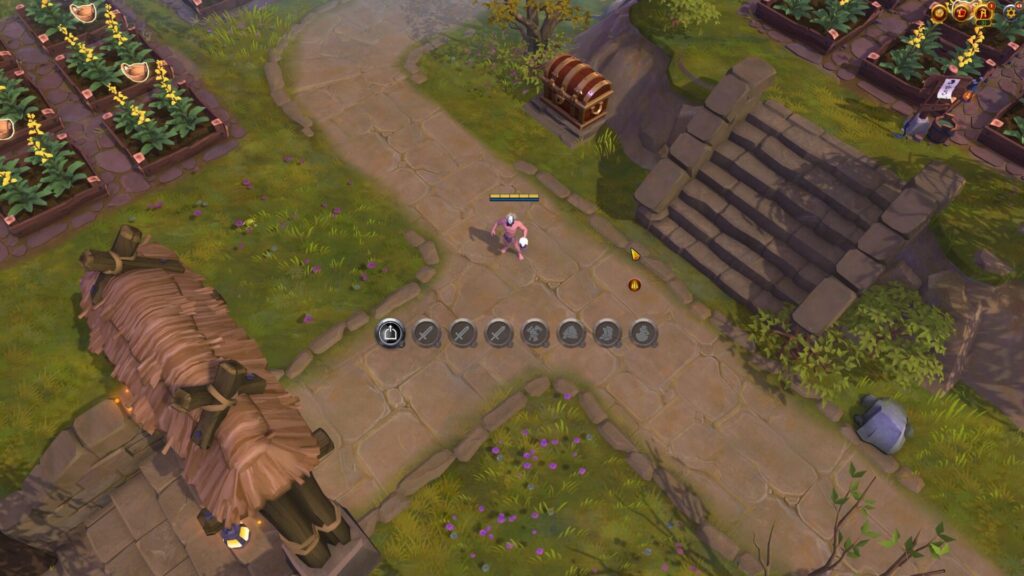
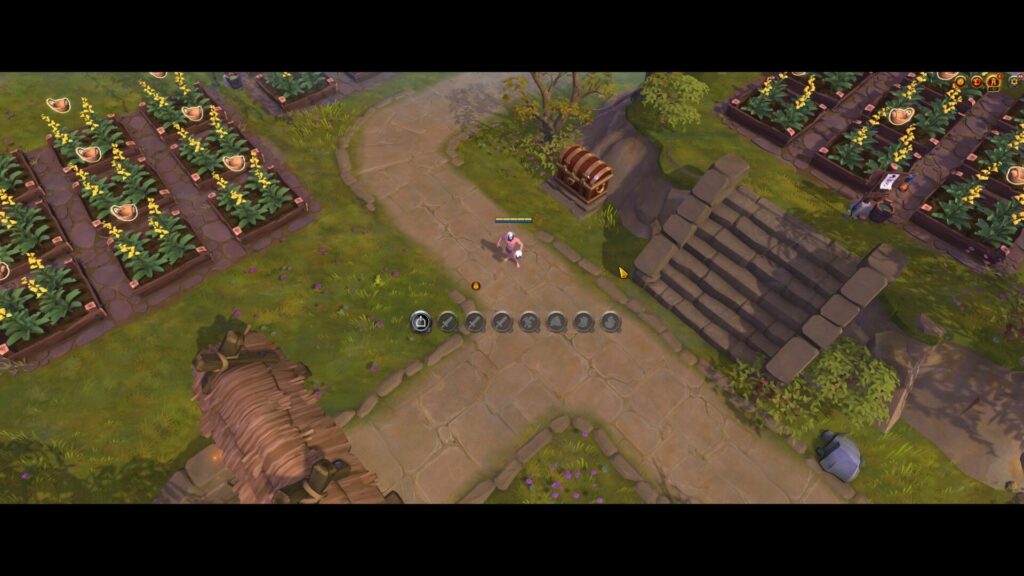
Why widen your screen in Albion Online?
By using a wider resolution (ultrawide format), you gain several advantages:
- 👀 Wider field of view on the sides
- ⚔️ Faster detection of enemy players
- 🗺️ Better anticipation in PvP and dangerous zones
- 🐎 More safety while traveling or transporting resources
This technique is especially useful in solo PvP, roaming, or resource transport.
Step 1: Open the Nvidia Control Panel
If you have an Nvidia graphics card, you need to create a custom resolution.
- Right-click on your desktop (or the Nvidia icon)
- Open the Nvidia Control Panel
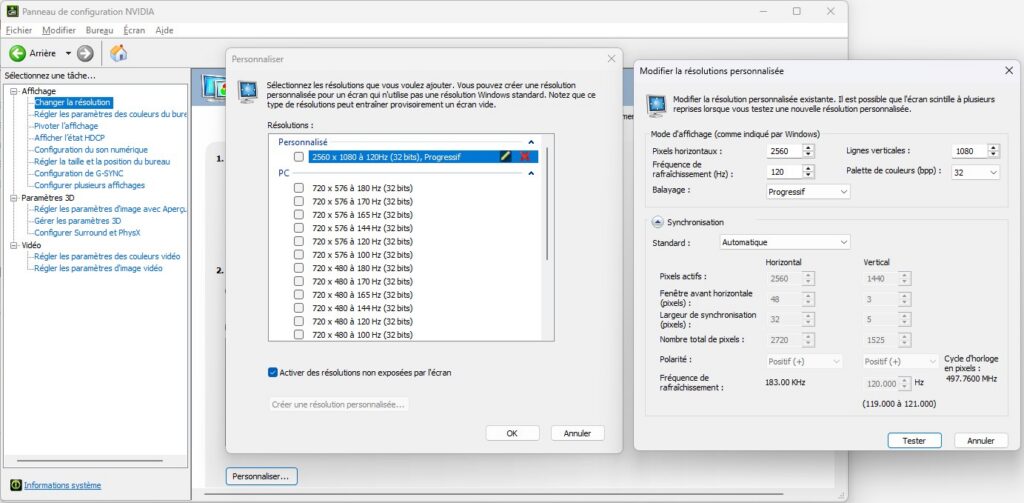
- Go to Change Resolution
- Click Customize
- Click Create Custom Resolution
Step 2: Create an ultrawide resolution
Next, you will enter a resolution wider than your monitor.
For a 2K screen
Recommended resolution: 2560 × 1080
This allows you to get a wider screen format while keeping good readability.
For a 1080p screen
Recommended resolution: 1920 × 810
This resolution slightly reduces the height but increases the horizontal field of view.
Step 3: Select the resolution in Albion
Once the resolution is created:
- Launch Albion Online
- Go to Settings
- Open the Video tab
- Select the new custom resolution
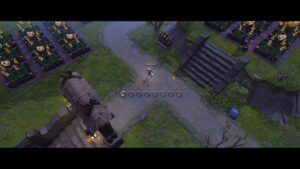
Your screen will now appear wider, with black bars at the top and bottom.
But most importantly: you’ll be able to see farther on the sides.
PvP Tips
Here are some tips to get the most out of this technique:
- 🎯 Zoom out your camera as much as possible
- 🐎 Always watch the edges of the screen
- ⚠️ Use this resolution especially in red and black zones
- 🖥️ Play in fullscreen (borderless window if you frequently alt-tab)
With practice, you’ll spot enemy players much earlier than before.
Optimize your interface to gain even more visibility
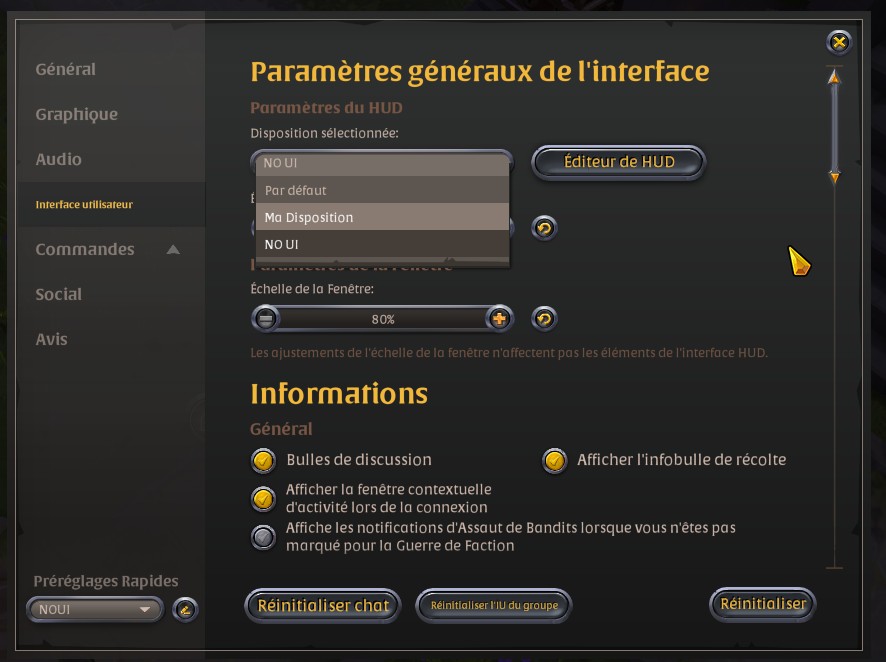
In addition to widening the resolution, Albion Online also allows you to fully customize the user interface (UI). The goal is simple: remove or move unnecessary elements to free up screen space and spot enemy players more easily.
When the screen is filled with information (chat, icons, notifications, etc.), it becomes harder to see a player approaching from the sides. By reducing these elements, you can focus your attention only on the environment and suspicious movements.
Hide unnecessary elements
Here are the elements many PvP players choose to hide or reduce:
- 💬 Chat
- 🧭 Certain notifications
- 📜 Secondary windows
- 🧩 Interface icons that are not useful in combat
By removing these elements, you get a much cleaner and more readable screen, which improves your ability to detect an enemy quickly.
Reorganize the interface
Albion also allows you to move several interface elements so they don’t block your vision.
For example, you can:
- move certain bars to the corners of the screen
- reduce the size of certain windows
- group important information in the same area
The goal is to keep only the essential information: your health, energy, abilities, and the minimap.
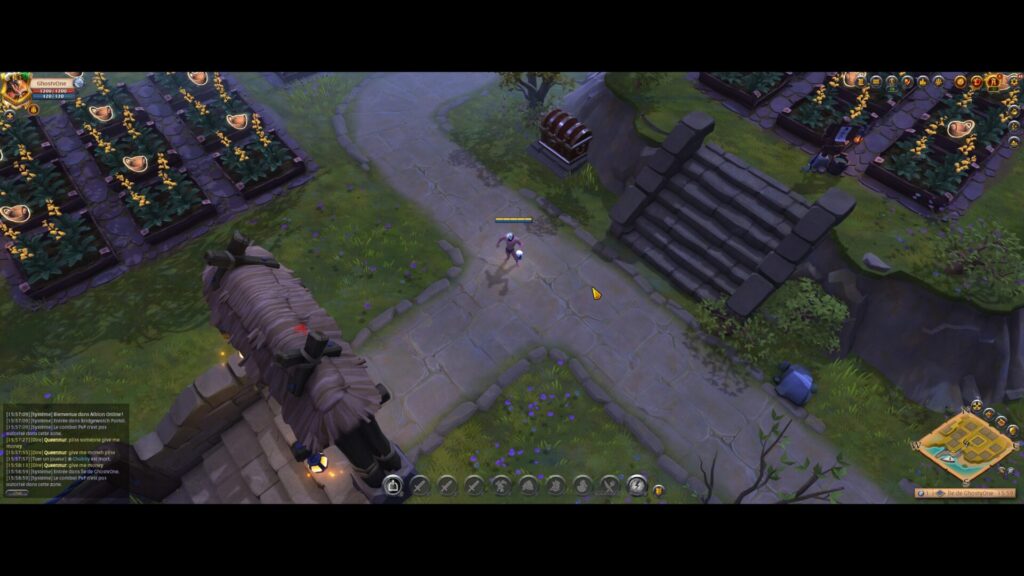
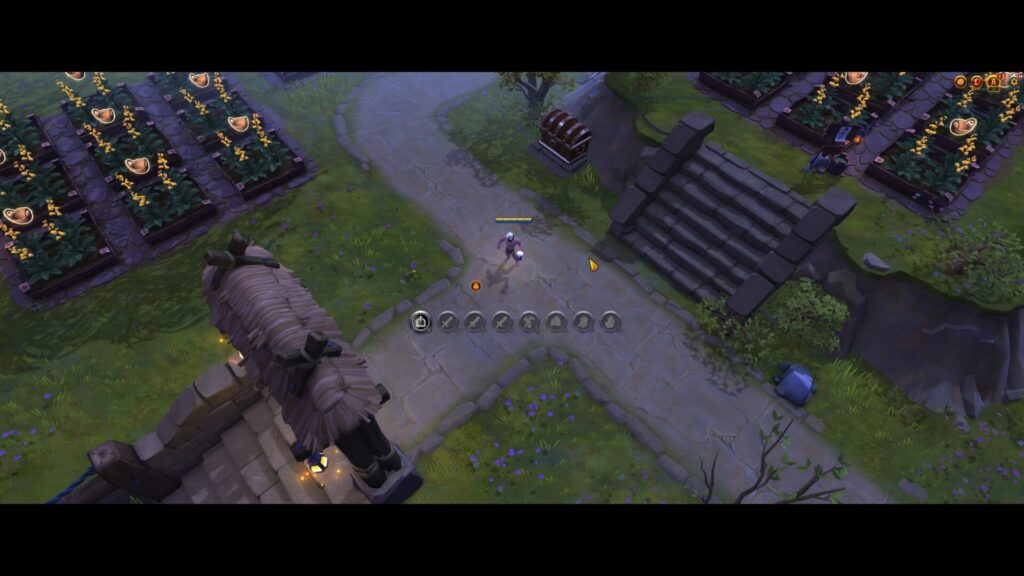
To make this change, go to the game settings, then to User Interface.
Why it matters in PvP
In dangerous zones, fights often start very quickly. A cluttered interface can make you lose precious reaction time.
A clean interface allows you to:
- 👁️ see players arriving earlier
- ⚠️ detect an ambush faster
- 🐎 react faster to escape or engage in combat
Combined with a wider resolution, a customized interface turns your screen into a true PvP radar.
💡 Tip: test several interface configurations until you find the one that allows you to see the maximum space around your character while keeping essential information.